Enable Single Sign-On in Salesforce Lightning
Single Sign-on (SSO) allows call center users to log in to Salesforce and Bright Pattern Contact Center applications simultaneously from a single login.
Step 1: Register and Deploy Organizational Domain to Users
- In Salesforce Lightning Setup, navigate to Settings > Company Settings > My Domain to register a new organizational domain (if you don't already have one).
- Click Edit.
- Enter your desired domain name, such as your company name, and check for availability. When the name is shown to be available, you may register it. The registration process will take a few minutes; you will receive an email when your domain is registered and ready for testing. For more information on registration, refer to Salesforce Help.
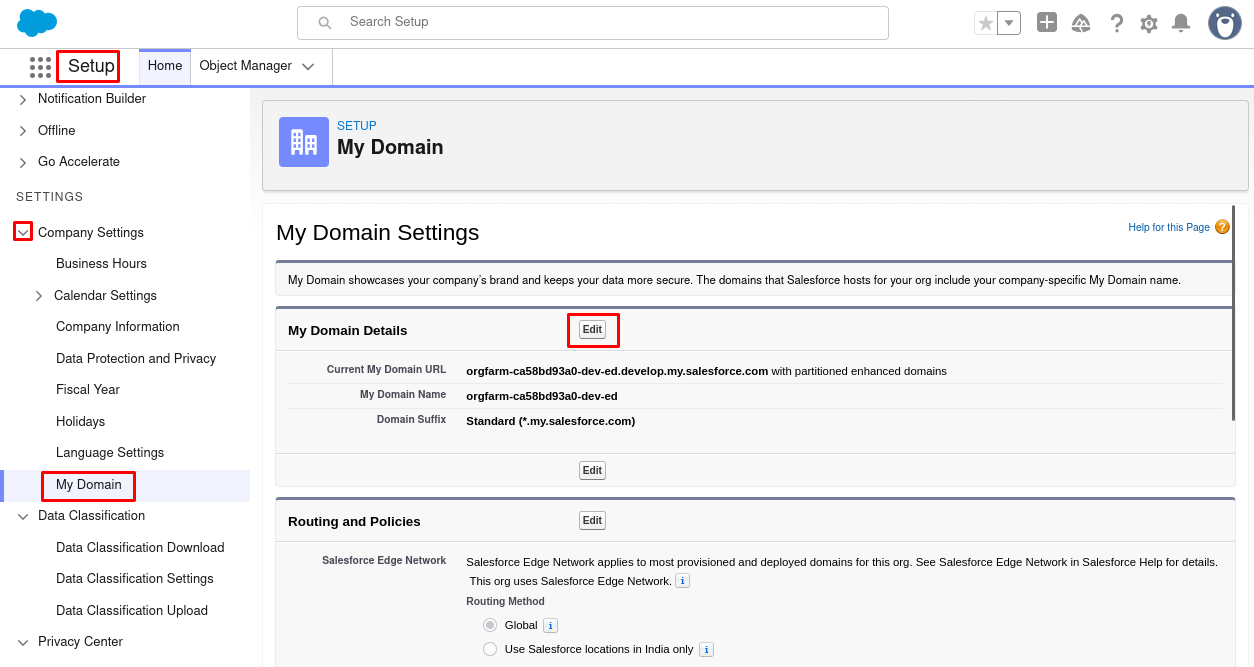
Register your domain - Log in to the domain to test it, and then click Deploy to users.
- All users must log in using this domain URL, which should be in the following format:
https://<your-domain-name>.my.salesforce.com/

Step 2: Enable Identity Provider
After your domain name is registered, you will be able to enable your identity provider, which is necessary for SSO. Once you complete this step, you will not have to do it again.
In Salesforce Lightning Setup, navigate to Settings > Identity > Identity Provider and click Enable Identity Provider.

Step 3: Get the Certificate
The identity provider certificate is provided to the Salesforce Integration Account to establish Salesforce as the identity provider for single sign-on.
- In Identity Provider Setup, select the actual certificate to be used. If no certificates are shown, you should either create a new self-signed certificate or import a certificate from your setup.
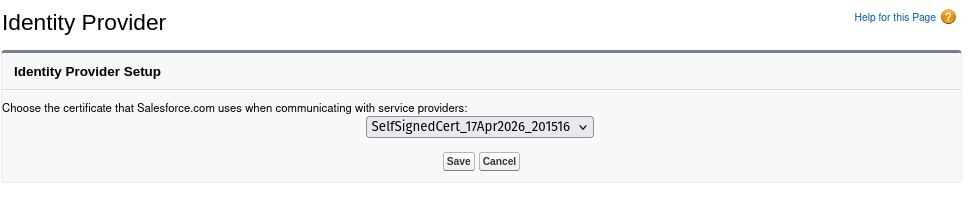
Select the certificate - Click Download Certificate.
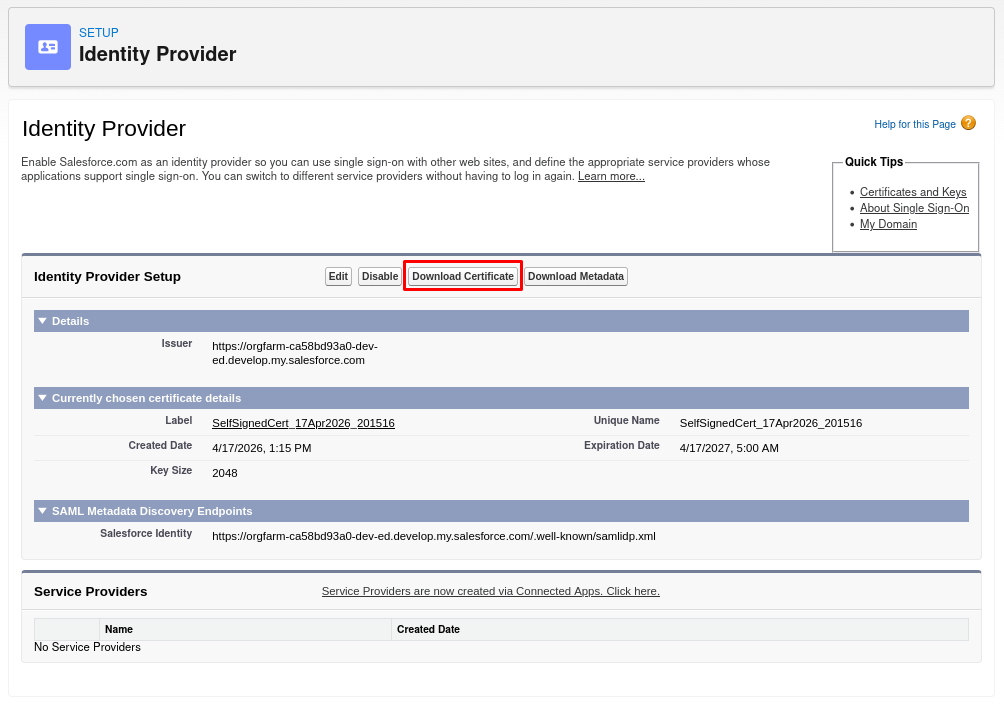
Click Download Certificate


Step 4: Customize your External Client App
- From Setup, navigate to Apps > External Client Apps > External Client App Manager and select the app created to access Salesforce Data in Scenarios.
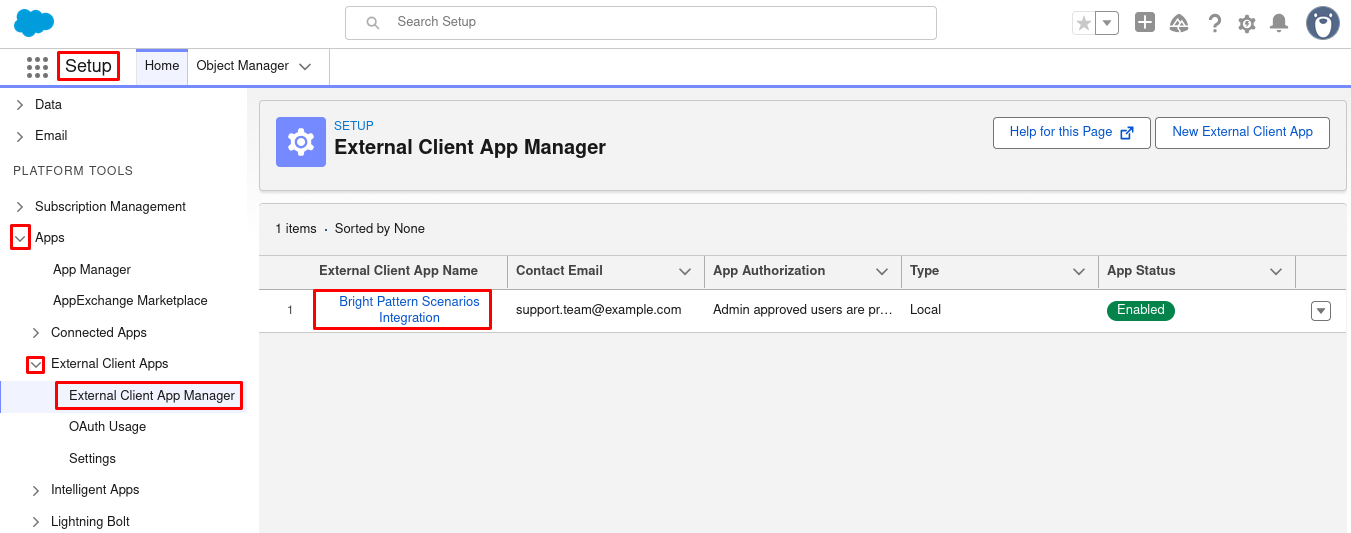
External Client App Manager - Select the Policies tab, open the OAuth Policies section, and click Edit.
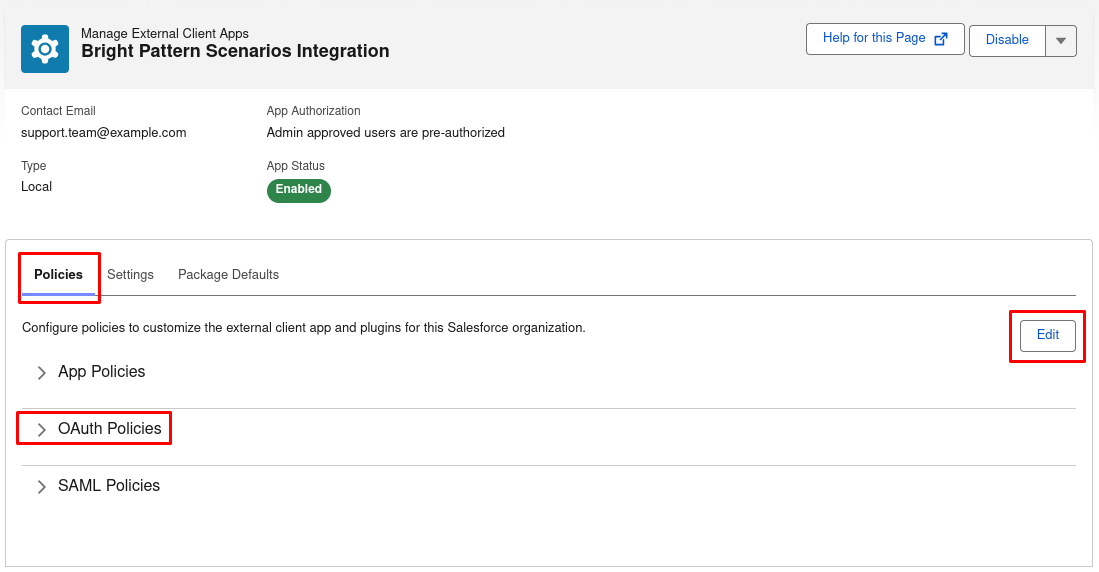
Edit Oauth policies - Under OAuth Policies > App Authorization, set the following:
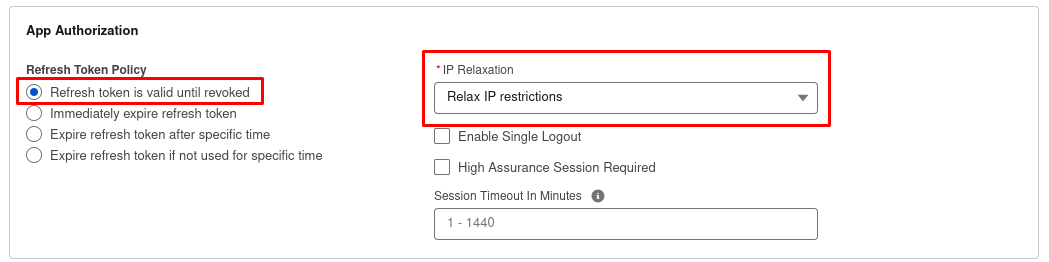
Edit OAuth policies
- Refresh Token Policy: Refresh token is valid until revoked
- IP Relaxation: Relax IP restrictions
- Refresh Token Policy: Refresh token is valid until revoked
- Under SAML Policies > Plugin Policies, configure the following:
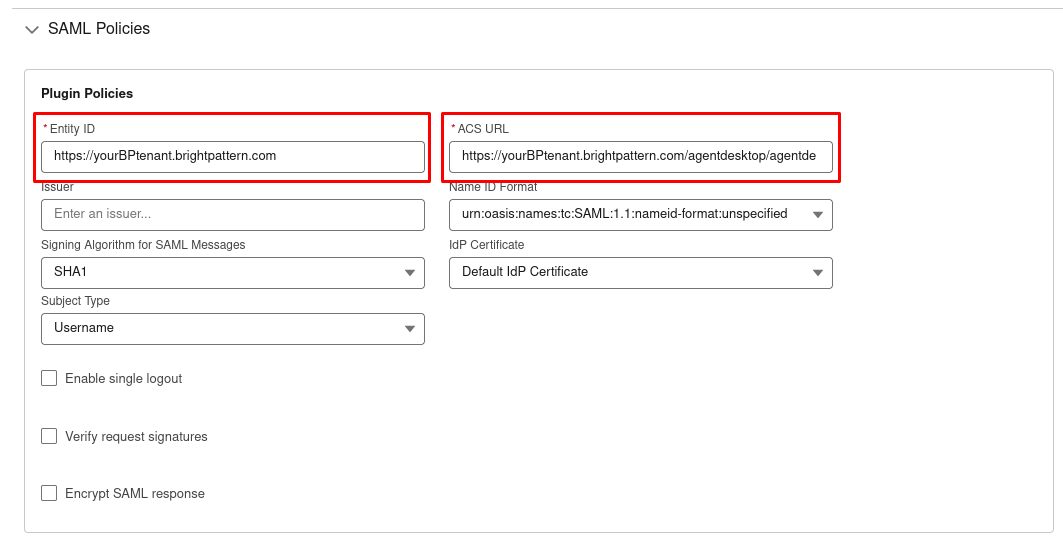
Edit SAML Policies
- Entity ID: The base URL for your contact center, where "<your-tenant>" is your contact center name:
https://<your-tenant>.brightpattern.com
- ACS URL: The URL should take the following form, where "<your-tenant>" is your contact center name:
https://<your-tenant>.brightpattern.com/agentdesktop/agentdesktop/sfsso/response
- Entity ID: The base URL for your contact center, where "<your-tenant>" is your contact center name:
- Click Save.


Step 5: Configure user profiles and field mapping (login mapping – custom attribute)
SSO requires user profiles assigned to users who use Bright Pattern Contact Center to be authenticated by the Salesforce Identity Provider. The following process maps the SSO parameters to the Bright Pattern Contact Center login ID.
- From the app management page, select the Package Defaults tab, click Edit, and click the
 icon to add a Custom Attribute.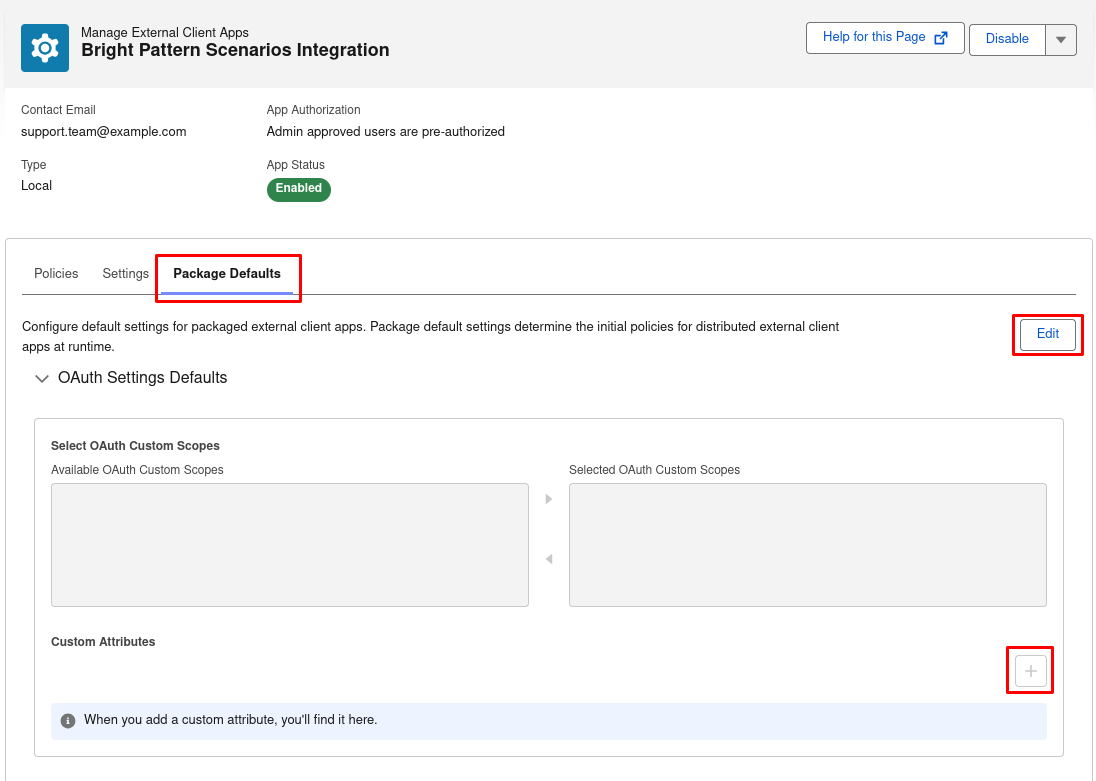
Click + to add a custom attribute - In the Add Custom Attribute dialog that opens, set the following:
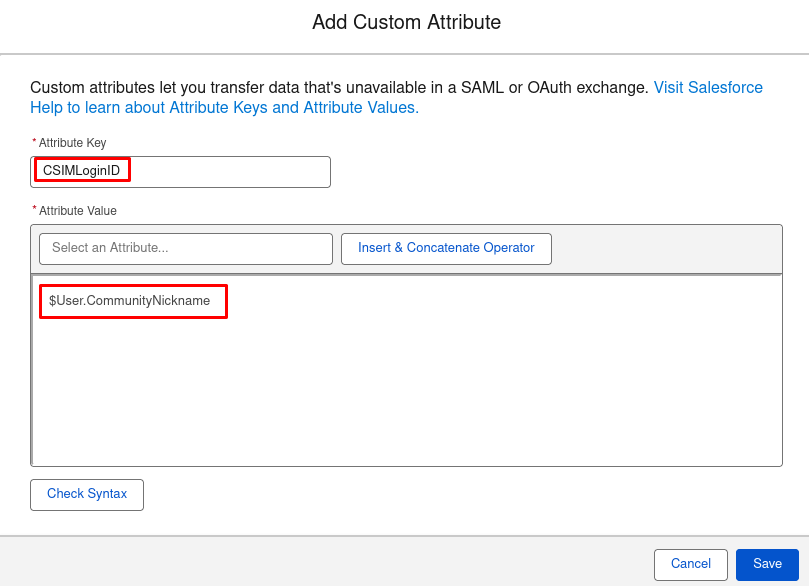
Define custom attribute properties
- Attribute key:
CSIMLoginID - Attribute value:
$User.CommunityNickname. This attribute can be matched with any user field. By default, it is configured to match the Salesforce user nickname.
- Attribute key:


|
If this attribute mapping is removed and no other attribute is specified, then the login ID will be used with or without the domain suffix based on 'Strip domain suffix from login names:" option. | |
Step 6: Get the Identity Provider Initiated Login URL
- From the app management page, return to the Policies tab and open the SAML policies section.
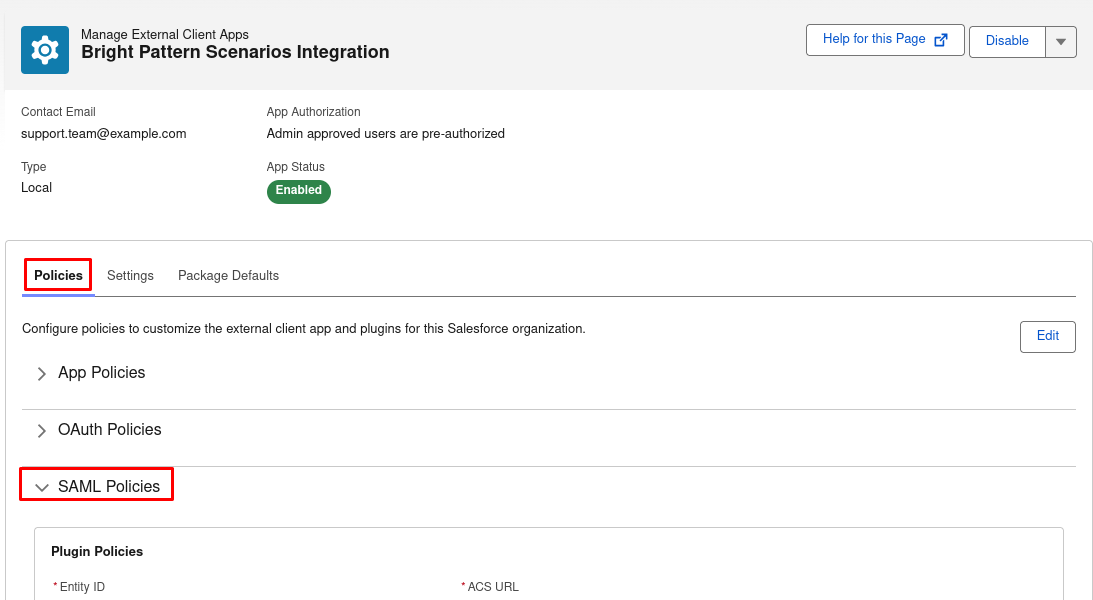
View the SAML policies within the app management page - Scroll down to SAML Login Info and copy the IdP-Initiated Login URL.
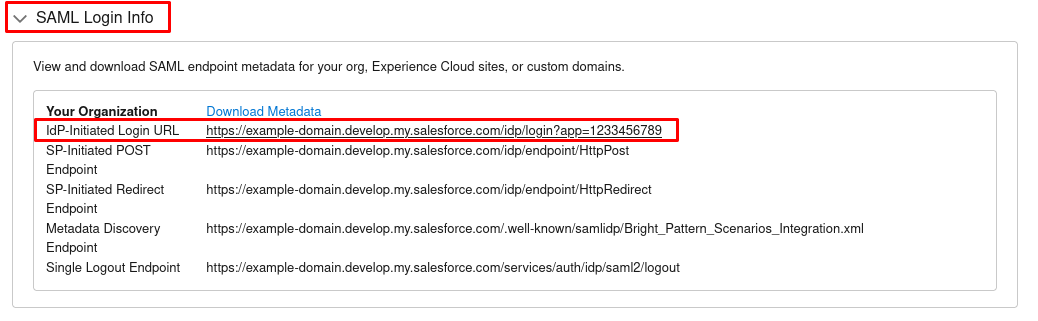
Locate the IdP-Initiated Login URL under SAML Login Info - Save this URL for when you add the Salesforce integration account in the Bright Pattern Contact Center Administrator application. This URL will go in the "Identity provider initiated login URL" property.


Step 7: Set up SSO integration with Bright Pattern Contact Center
You can complete the SSO integration configuration by pasting the Certificate and Idp-initiated Login URL into Salesforce integration account properties in the Bright Pattern Contact Center Administrator application.