How to Submit a Time-Off Request
Agent Desktop 2.0 users in contact centers with Workforce Management (WFM) enabled can submit and manage time-off requests via the Calendar.

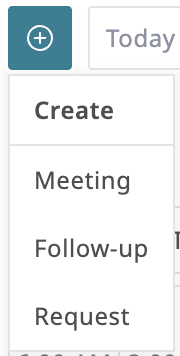
Press the Create Event button at the top of the Calendar or My Requests tab.
Select Request from the drop-down menu.
In the Request Type field, select Time off.
Select the desired start and end times from the Start and End fields.
Optional settings:
If your request is for 8 hours or longer, enable the All day event checkbox.
Add relevant details in the Comment field.
If this request is for a span of time that you don't want to be broken up, enable the All or nothing checkbox.
Click the Create button at the bottom of the panel. The time off request will appear in the calendar marked Pending until it is approved, denied, or withdrawn.

Click the My Requests tab to check the status of your requests and view your available time off.
