Dispositions and Notes
Dispositions are custom interaction results defined by your contact center management. When handling a service interaction, you may be required to select one of the dispositions that define the outcome of the interaction. If dispositions are defined for the services that you provide, the communication panel of your Agent Desktop will display the Disposition drop-down menu for every associated service interaction.
If you are required to set dispositions, you will receive detailed instructions for their use from your system administrator. Learn more about dispositions and how they are managed in the Contact Center Administrator Guide.
In addition to dispositions, you can also enter free-form text notes to provide more information about the outcome of the interaction.

How to Enter Dispositions and Notes
To enter a disposition for an interaction and/or related notes, follow these steps:
- At any time during the interaction with the customer or while in the After Call Work state, click the Disposition drop-down menu.
- Select the disposition that corresponds to the result of the interaction. Some dispositions specific to outbound campaigns may require additional parameters, such as scheduling of another call attempt. If such parameters are required, they will be displayed in the communication panel.
- If necessary, enter notes in the Note field.
- Continue to process the interaction normally. For more information about finishing interactions, see How to Release a Call and How to Wrap Up After Call Work.


|
If you use a custom form in the main workspace for processing data related to a specific call, both the Disposition and Note fields may appear in that form instead of the communication panel. | |
Other Uses for Dispositions
If configured for your contact center, dispositions can trigger automated workflows after an interaction is completed. Such workflows may send emails or text messages, schedule events, update data, or perform other follow-up actions.
For example, setting a particular disposition for an interaction could trigger the following series of events to happen:
- Send a survey to the customer.
- Wait a specified amount of time (e.g. 30 minutes, 1 day, 1 week, etc.).
- Send a follow-up email to the customer.
Using Dispositions to Request Content Erasure
You can use a disposition to request that content from a specific interaction be manually erased, provided that a disposition and workflow have been created for that purpose. Such requests are typically used when sensitive information has been captured in voice recordings, transcripts, emails, screen recordings, or other interaction content.
While any agent can submit such a request, only system administrators can erase sensitive data.
What to Do
- If your contact center has a disposition configured for content erasure requests, select that disposition for the interaction.
Note: The name of the disposition depends on your contact center configuration. If you do not know which disposition to select, contact your supervisor or system administrator.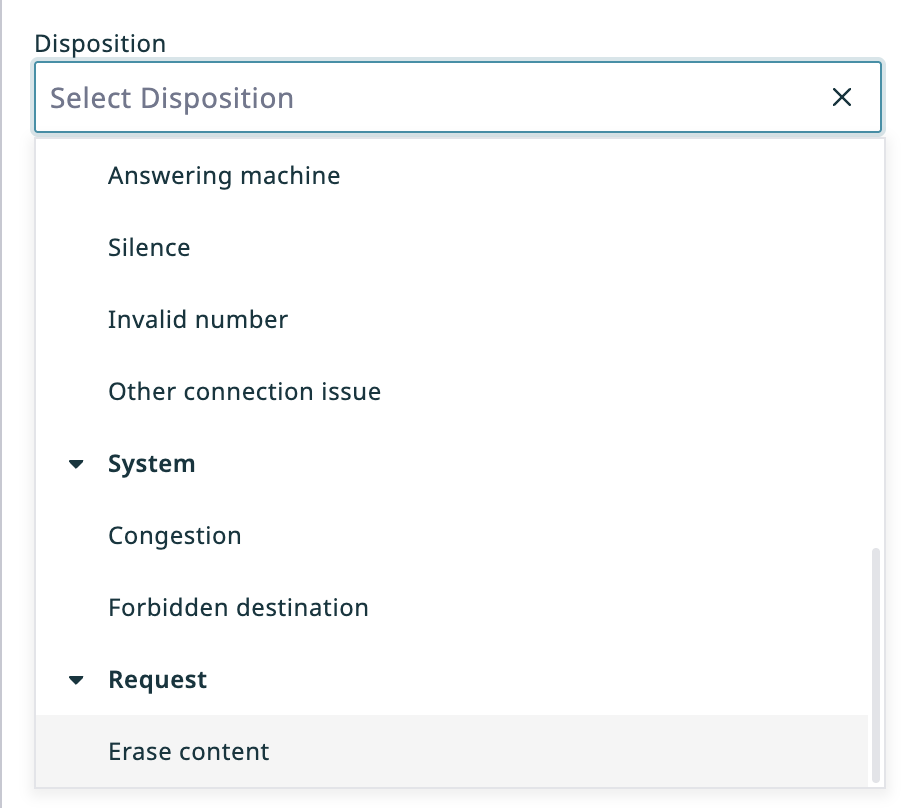
Disposition "Erase content" selected - Optional: In the Note field, provide a reason for the request and enter additional details about the interaction.
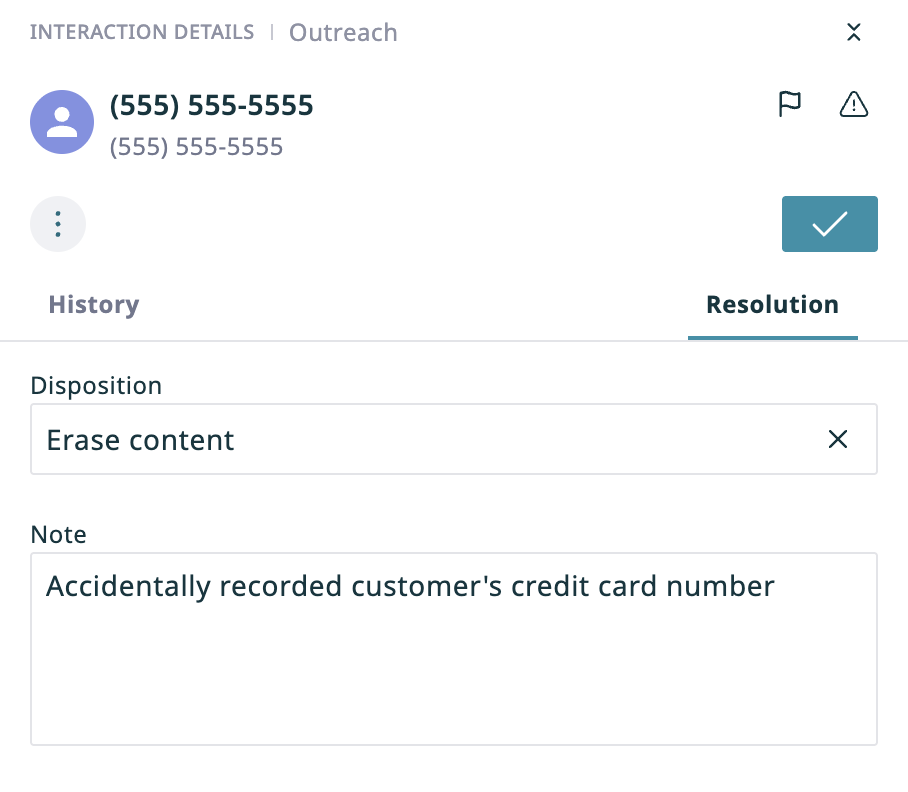
Use Notes to provide a reason for erasing content - Complete the interaction.
- The disposition will initiate a workflow that sends your system administrator an internal message with the content erasure request.

