How to Use Favorites

Agents with the configuration profile feature Use Favorites can mark specific communication channels for individual contacts as favorites, so that the most-called customers remain accessible while agents are working in Agent Desktop 2.0.
Storing Favorites
You can store up to 50 frequently used communication channels in your personal Favorites list.
To add a communication channel to your Favorites, follow these steps:
- Open the communication panel.
- Select the desired contact from the Directory or Recents tab, or enter their number or extension manually in the Dial Pad tab.
- Hover your cursor over the contact's name in the list, then click on the ☆ or ⓘ icon that appears.

- You have the option to favorite individual communication channels: i.e., a contact's phone number, email address, or both. In addition, you can favorite a phone number for messaging or calling.
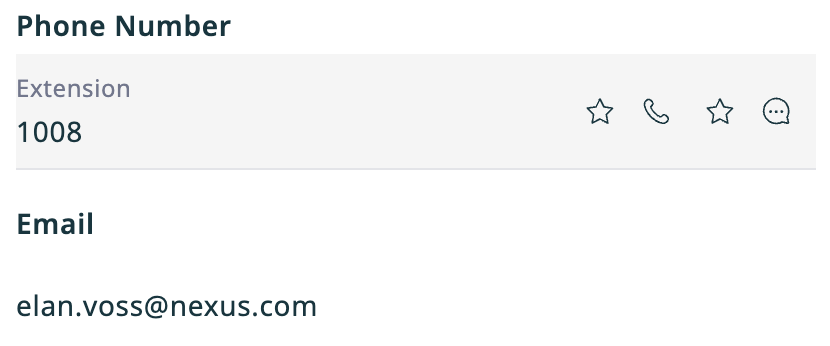
- Click on a star icon to add the relevant communication channel to your Favorites. Once clicked, the star icon will change its appearance to ★.
- View the contact in the Favorites tab. Note that listings for phone numbers where you clicked Add to Favorites as Voice feature a phone icon, while listings for phone numbers where you clicked Add to Favorites as Message feature a chat icon. Listings for email addresses feature an envelope icon.


Adding and Updating Favorites
You can also favorite a communication method during an active call or chat with a contact.
Privileged users can edit external contacts via Favorites.
- Open the communication panel, then click on the Favorites tab.
- Hover your cursor over the listing in question, then click the Details icon ⓘ.
- Click Edit Contact.
- Edit contact information as desired, then press Save.
Contacting Your Personal Favorites
To call or message the contacts in your Favorites list, follow these steps:
- Open the communication panel, then click on the Favorites tab.
- If necessary, select the service as described in section How to Make an Outbound Call.
- Click on a listing to immediately begin a phone call or compose a message to them via the favorited channel.
Removing Favorites
To remove a contact's phone number or email address from your Favorites, hover your cursor over their listing in the Favorites tab, then click the  button next to their name.