How to Use Knowledge Base Articles
There are several ways to access your organization's Knowledge Base, during and apart from interaction handling.
Sharing Articles with Customers
To insert the contents of a Knowledge Base article into an email or chat reply, follow the instructions below.
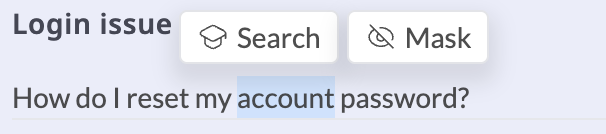
- Highlight a word or phrase in the customer's message, then select Search.
- Alternately, click the Knowledge icon
 on the right-hand side of the page to open the Knowledge Base sidebar. Browse the Knowledge Base or use the search function to find relevant articles.
 - Select the article you wish to share with the customer.
- Click the Insert article into reply button.
Note: To provide finer control over the content insertion process, functionality for directly sending article content to customers is deprecated in Agent Desktop 2.0.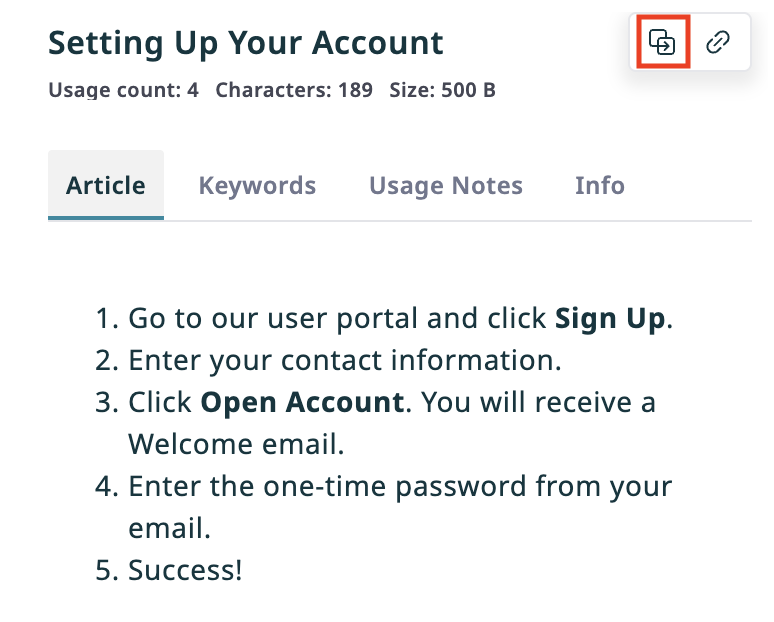
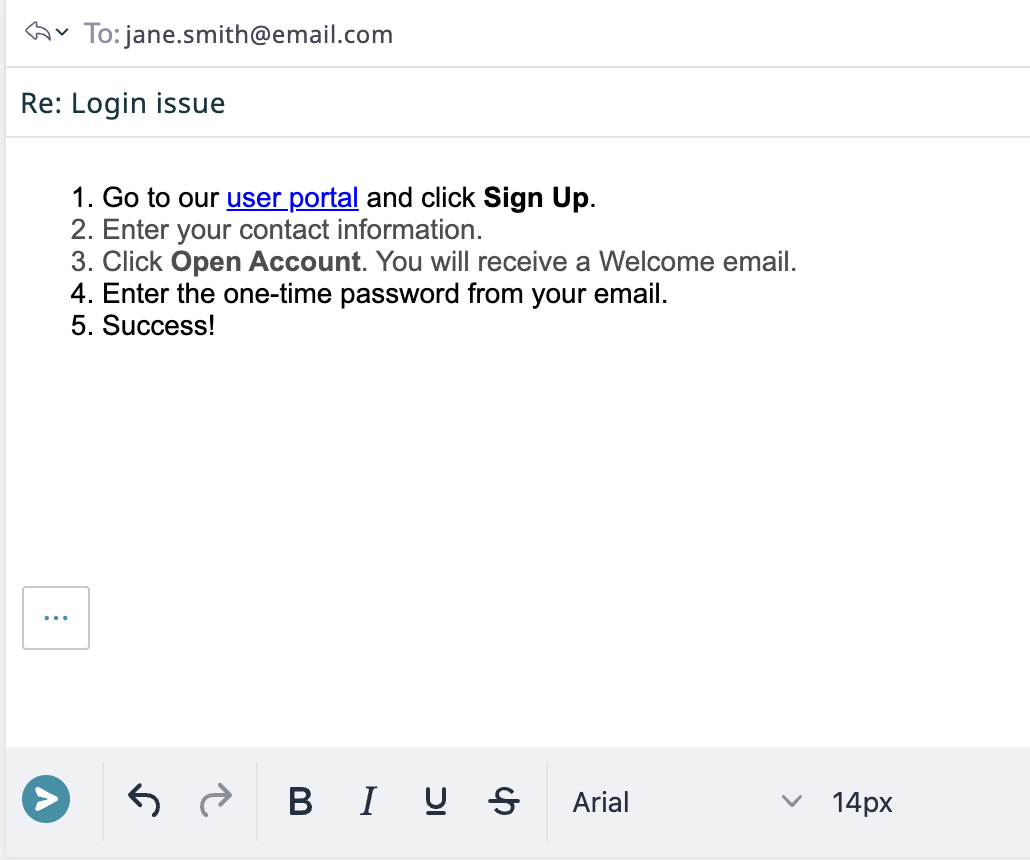
- The contents of the Article tab are inserted into your email draft or chat message. Edit the text as needed before sending.


Searching the Knowledge Base
Another way to find articles is by using the Knowledge Base search function. Type a word or phrase contained in the article into the search field. Place a phrase in quotation marks to match it exactly. Matching articles will appear below the search field.

Click inside the search field to show the following selectable filters:
- All (default): Search the contents of the entire Knowledge Base
- Body: Search only article text
- Title: Search only article titles
- Folder: Search only folder titles
- Service: Search articles related to a specific service
- Keywords: Search article keywords
Search results can be sorted alphabetically, reverse alphabetically, or by usage.
Note: Your administrator may restrict Knowledge Base article sorting options to best suit your organization and business processes.

Selecting an Article
Click on an article in the search results or in the list of all Knowledge Base articles to view it in full. The contents of each article are shown in four tabs: Article, Keywords, Usage Notes, and Info.


|
An article may be assigned as the default reply for a service. In this case, the text of the article automatically appears in the drafts for all emails associated with this service. | |
Article
The Article tab contains the answer to a customer’s problem or question. The contents of this tab are inserted into replies when you click Insert article into reply. This part of the article may contain substitution fields that will obtain data from your working session and the message that you are replying to (e.g. first and last name, case number, or customer’s email address).
Keywords
The Keywords tab normally contains a statement of the customer problem or question that this article addresses. This tab contains search terms and phrases that help users locate relevant articles and quickly determine whether an article applies to the current interaction. Information in this tab is for agent reference only and is not included when the article is inserted into a reply.
Usage Notes
The Usage Notes tab contains notes, comments, and suggestions regarding usage of this article. These notes may come from the author of the article and/or the agents who may have used it before. Information in this tab is for agent reference only and is not included when the article is inserted into a reply.
Info
The Info tab contains article metadata, such as word count, author, and usage data. Information in this tab is for agent reference only and is not included when the article is inserted into a reply.