From Bright Pattern Documentation
• 日本語
How to Terminate Your Working Session
The keyboard shortcut to log out is Alt+Shift+Q.
- To log out of your working session, click on your user icon in the top right corner of the application.
- Click Log out in the drop-down panel.
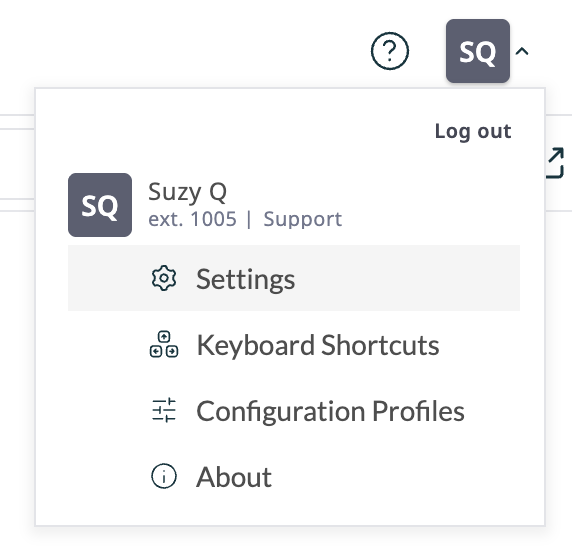
Click on your user icon to load Settings and other options - A dialog window will appear asking you to confirm the intention to terminate your working session.
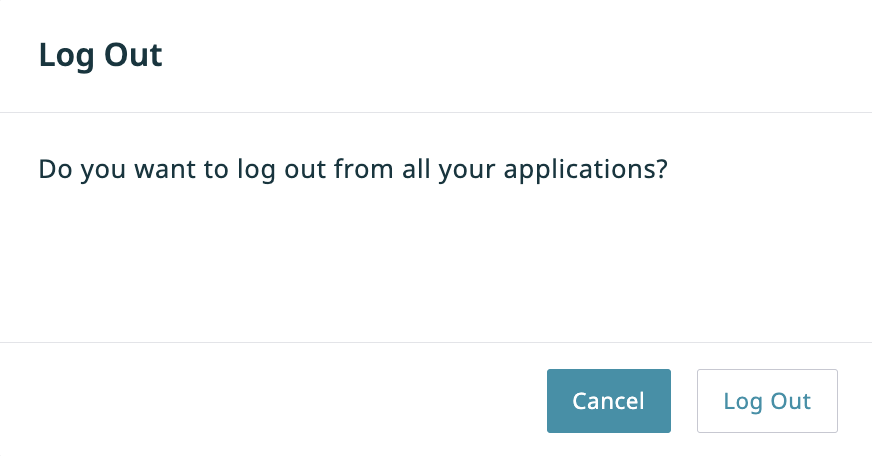
Logging out of Agent Desktop - Click Log Out to confirm.
- If you have an active call or chat on your desktop, the system will let you finish processing it before logging you out.
- If you have any unfinished emails on your desktop, you will be allowed to log out immediately. The unfinished emails will be saved as drafts in your personal queue, and you will be able to finish processing them the next time you log in.


After you have logged out, the browser tab will display the login dialog. You can leave the browser tab open if you plan to log back in shortly. Otherwise you can close the browser tab.
Note: If, instead of using the Logout command, you close the browser tab or the browser application, a standard browser dialog will appear asking you to confirm your intention to leave the web page. If you confirm, your Agent Desktop 2.0 application will be closed and you will be logged out of the system automatically in about 15 seconds.